
 By asahifile
 AI Video Generator for YouTube Without Watermark
If you want an AI video generator for YouTube without a watermark, the reliable path is to use a tool whose paid plan includes watermark-free export, or one that never adds a watermark in the first place. Most free tiers add a watermark specifically to push you toward paying, and a few generators are watermark-free on free plans. Either way, check the licensing terms as closely as the watermark, because “no watermark” and “commercial use allowed” are two different things.
This guide explains where watermarks come from, how to remove them legitimately, and which tool categories fit different YouTube formats.
Why AI video tools add watermarks
A watermark is the tool’s way of turning free users into customers. It also protects the vendor’s brand on content they helped create. That’s why the pattern is so common:
– **Free tiers** often add a visible logo.
– **Paid tiers** usually remove it.
– **Some tools never watermark,** and simply limit how much you can generate instead.
Understanding this saves you from hunting for shady “watermark removers.” The honest answer is almost always one of two things: pay for the plan, or use a tool that doesn’t watermark.
How to get watermark-free video, legally
1. **Check the plan, not just the trial.** Read whether watermark-free export is included and at which tier. Many trials display a watermark even though the paid plan doesn’t.
2. **Look for the export setting.** Some tools let you toggle the watermark off only on paid plans, so confirm it’s actually available before committing.
3. **Read the license.** Watermark-free does not automatically mean you can monetize. Look for explicit commercial-use rights.
4. **Compare against a watermark-free tool.** If you only need occasional clips, a generator that never watermarks may be cheaper than upgrading.
5. **Avoid “remover” apps.** Third-party watermark removers often violate terms of service and can produce distorted output. Don’t build a channel on them.
Paying for the plan you use is the clean, sustainable route — and it keeps your account in good standing.
Tool categories and who they fit
Different YouTube videos need different kinds of AI video tools. Picking the wrong category is a bigger problem than any watermark.
| Tool category | Best for | Strengths | Weaknesses | Price tier |
|—————|———-|———–|————|————|
| Text-to-video generators (e.g., Runway, Pika, Luma, Kling) | Short cinematic or b-roll clips | Striking visuals from a prompt | Clip length limits; consistency across shots is hard | Runway: Free (125 one-time credits); Standard $12/mo; Pro $28/mo; Max $76/mo (verified) |
| AI avatar/presenter tools (e.g., HeyGen, Synthesia) | Talking-head explainers | Realistic presenters without filming | Less natural for anything but presenter formats | Free tier with limits; paid in the low monthly range |
| Script-to-video editors (e.g., InVideo, Pictory) | Faceless channels, news, lists | Turn a script into a full video fast | Rely on stock footage; can look generic | Free tier with limits; paid in the low monthly range |
| Consumer editors with AI features (e.g., CapCut and similar) | Everyday YouTube editing | Auto-captions, effects, easy export | AI generation is a feature, not the core | Free core; paid features in the low monthly range |
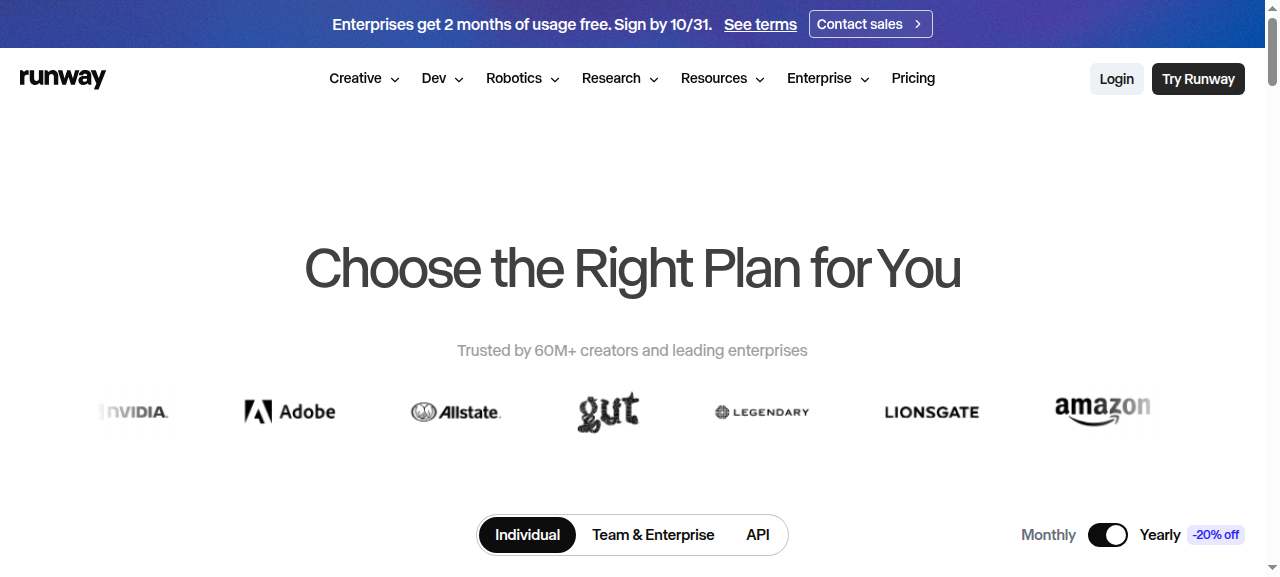
*Pricing verified against each vendor’s plan page on Oct 19, 2026; tiers change often, so re-check before subscribing.*
Most creators combine two categories: a generator for standout shots and an editor or script-to-video tool for the bulk of the timeline.
Matching the tool to the video
**Faceless narration videos (top-10s, explainers, history):** a script-to-video editor fits best, because it assembles stock footage and captions from your script. Pair it with a generator for a few hero shots.
**Talking-head or course content:** an AI avatar tool lets you publish without filming. Check disclosure expectations, since realistic synthetic presenters may need labeling.
**Cinematic shorts and b-roll:** text-to-video generators produce the most striking clips. Expect shorter durations and more takes to get a usable shot.
**Everyday vlogs and tutorials:** a consumer editor with AI features is enough. You’re mainly using AI for captions and cleanup, not generation.
**YouTube Shorts:** short-form friendly generators plus a vertical template. Keep the hook in the first second.
Watermark, license, and attribution: three separate checks
It’s easy to collapse these into one question, but they’re distinct and all three matter:
– **Watermark** — is a logo burned into the exported file? This is about appearance.
– **License** — does the plan allow commercial use and monetized uploads? This is about rights.
– **Attribution** — does the license require you to credit the tool somewhere? This is about obligations.
A tool can be watermark-free yet still restrict commercial use, and a permissive license can still ask for credit. Read all three before you build a channel around a generator, because fixing a rights problem after publishing is far harder than checking upfront.
Practical tips
1. **Storyboard before generating.** Describe each shot in order; generators work better with specific prompts than vague moods.
2. **Generate more than you need.** AI clips vary; producing several takes and picking the best is normal.
3. **Keep a consistent look.** Reuse the same style words, color palette, and pacing so a video doesn’t feel stitched together.
4. **Always add captions.** Most viewers watch muted at least some of the time.
5. **Check the audio licensing.** Voice and music rights are separate from video rights.
6. **Export at YouTube’s recommended settings.** A great clip ruined by a bad export wastes the generation.
7. **Keep the studio/plan honest.** If your plan requires attribution, add it rather than cropping it out.
Common mistakes to avoid
– **Assuming free means watermark-free.** Often it doesn’t; read the plan details.
– **Ignoring commercial-use terms.** A personal-only license can’t back a monetized channel.
– **Using watermark removers.** They risk account bans and broken output.
– **Over-relying on one style of AI clip.** Audiences notice when every video looks identical.
– **Neglecting audio.** Bad narration or mismatched music sinks otherwise good visuals.
– **Forgetting disclosure.** Realistic synthetic content may need labeling on YouTube.
FAQ
Is there an AI video generator that is truly free and watermark-free?
A few tools let you generate short clips without a watermark on free plans, often with strict limits on length or volume. Most popular generators watermark free exports, so watermark-free is usually a paid feature or a limited free allowance.
How do I remove a watermark from AI video legally?
The legitimate options are to upgrade to a plan that exports without a watermark, or to switch to a tool that doesn’t add one. Third-party watermark removers typically violate the tool’s terms, so avoid them.
Can I monetize videos made with AI generators?
Often yes, but it depends on the tool’s license. Look for explicit commercial-use rights, verify the terms cover monetization, and label synthetic content where YouTube requires it. Also, low-effort mass-produced videos can be demonetized regardless of licensing.
Which AI video tool is best for a YouTube channel?
It depends on format: script-to-video editors suit faceless narration, avatar tools suit presenters, and text-to-video generators suit cinematic clips. Most channels combine two categories rather than relying on one.
Do I need to disclose AI-generated video on YouTube?
YouTube expects creators to disclose realistic synthetic or altered content in certain cases, including some AI voices and visuals. Check the current rules and label when required — transparency is safer for the channel.
Bottom line
The dependable way to get watermark-free AI video is to pay for a plan that includes it or choose a tool that never watermarks — and to confirm the license allows commercial use. Match the tool category to your video format first, then worry about the logo.
**Action step:** pick the category that fits your format, check that plan’s watermark and licensing terms before generating anything, and produce one test video end-to-end to validate the workflow.
Tools mentioned
Disclosure: some links below are affiliate links. If you sign up through them, I may earn a commission at no extra cost to you.
- Runway: link (replace with your affiliate link)
- Pika: link (replace with your affiliate link)
- Luma: link (replace with your affiliate link)
- Kling: link (replace with your affiliate link)
- CapCut: link (replace with your affiliate link)